How to use Cfreq.codes
What's a Cfreq code?
You've seen QR codes everywhere — but here's the thing about a QR code: it doesn't really carry anything. It's just a pointer that sends you somewhere else on the internet.
A Cfreq code is different. It carries its payload with it — a name, a link, a message — right there in the code itself. And it's genuinely new: a Cfreq code is made from frequencies. The waves you see in the picture and the waves you hear in the sound aren't decoration — they are the message. One code, two forms: a picture you can scan, a sound you can hear, each carrying the whole thing.
Your phone reads both, right here, with no account and no internet. Everything happens on your device.
Image Codes come in four styles — Polar, Square, Quilt, and Hex:
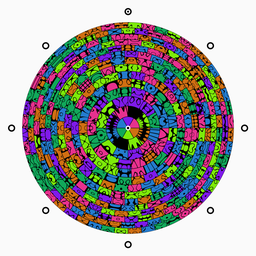
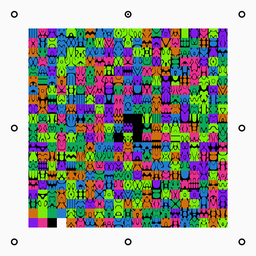
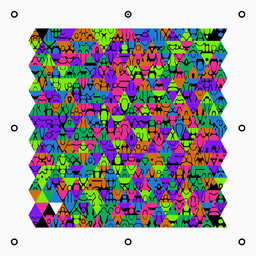
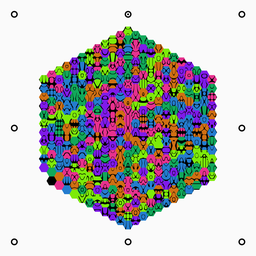
Different outfits, same code underneath. Scan whichever one you meet.
First things first — save the Cfreq.codes app on your phone!
You want to be ready the moment you hear or spot a Cfreq code out in the world.
Cfreq.codes installs like an app, straight from this page — no app store, nothing to download.
- iPhone / iPad: tap the Share button, then Add to Home Screen.
- Android: tap the Install prompt, or menu → Add to home screen.
From then on it opens full-screen from its own icon, online or offline.
👂 Hear a code
You'll hear sound codes in the wild: at the end of a video or podcast, on the radio, playing from a friend's phone, on a screen at an event — even over a PA system. When you hear one, here's all you do:
- Open the Cfreq App.
- Tap Listen.
- Stand a few feet from the speaker — and yes, really: closer isn't better. Right next to the speaker doesn't work. A few steps back is the sweet spot. Or any place you can hear the codes clearly.
- Wait for the room to quiet down, if you can. Your microphone picks up everything, and background noise can distort the data it's trying to hear.
- It's best if you can put your phone down so it's stationary, but if not, hold very still. Tap listen, and give it time. Most codes should play on a loop — let it hear at least two full plays (about 40 seconds).
- When it locks in, the code is decoded and saved for you automatically.
Friendly tips: don't cover the bottom of your phone — that's where the microphone lives. And if the app asks you to tap again, just tap again; it's making sure your microphone woke up properly. Do not use any other listening app on your phone, it won't work.
📷 Scan a code
Spotted one in print — on a poster, a card, a page? Let's decode it:
- Open the Cfreq App.
- Tap Scan.
- Pick the shape you're looking at — Polar, Square, Quilt, or Hex.
- Ghost markers appear on screen. Line up the printed markers with the ghost outlines. When they fit, your framing is right.
- Hold the phone flat and level over the code — tilted shots are the #1 reason scans miss. Check the level in the app to be sure you are not tilting the phone, it's easy to do.
- Watch for glare on the paper, fill the frame, and snap.
- Reading takes a moment — a few seconds up to about a minute, depending on the shape. The little guy will keep you company.
If it can't read your photo, you'll get a hint about what to fix — flatten the page, kill the glare, get closer — and you can snap again right away.
Do NOT use your camera without the app. Cfreq.codes only work inside the Cfreq app.
✏️ Make a code
Want to try making your own Cfreq code? It's the fun part:
- Open the Cfreq app.
- Tap Create.
- Give your code a name, a link, and anything else you'd like it to carry. The counter shows how much room is left — every code holds the same amount, so whatever fits, fits everywhere.
- If you use a tiny.url, and a shorter name, it will give you more room for the payload part.
- Save it — and just like that, you've made one. It's yours, stored right on your device.
Open it from your library to see it in all four shapes, print your favorite, or play it out loud for someone else's phone to hear.
📚 Your codes
Everything you've scanned, heard, or created lives in your Library — newest first. Open any code to:
- See it in all four shapes — pick the look you like before you print or share it.
- Play it as sound — it loops automatically, ready for another phone to listen (remind them: a few feet back, two full plays).
- Delete it if you don't need it any more.
When it doesn't work
A sound code won't decode
- You might be too close. Take a few steps back from the speaker.
- Quiet the room down a little — competing noise muddies the data.
- Let it listen longer: at least two full plays.
- Nudge the volume up and try again.
- If the capture ends instantly with no sound at all, close the app fully, reopen it, and tap listen again.
A printed code won't scan
- Flatten the page — curves bend the code.
- Level out, and line the markers up with the ghosts.
- Move until there's no shine on the ink.
- Make sure every marker made it into the photo — cropping one off is fatal.
Most misses come down to one of those. Fix the one that fits, try again, and the code will be yours.
Cfreq.codes™ — © 2026 Christina Fenwick / xWorld Studio. All rights reserved. Patent Pending.